How to Replace Fonts in After Effects Across an Entire Project (The Fast Way)
Swapping fonts in a large After Effects project doesn't have to take hours. Here's the fastest method — and the tool that makes it instant.

Hugo
· 4 min read
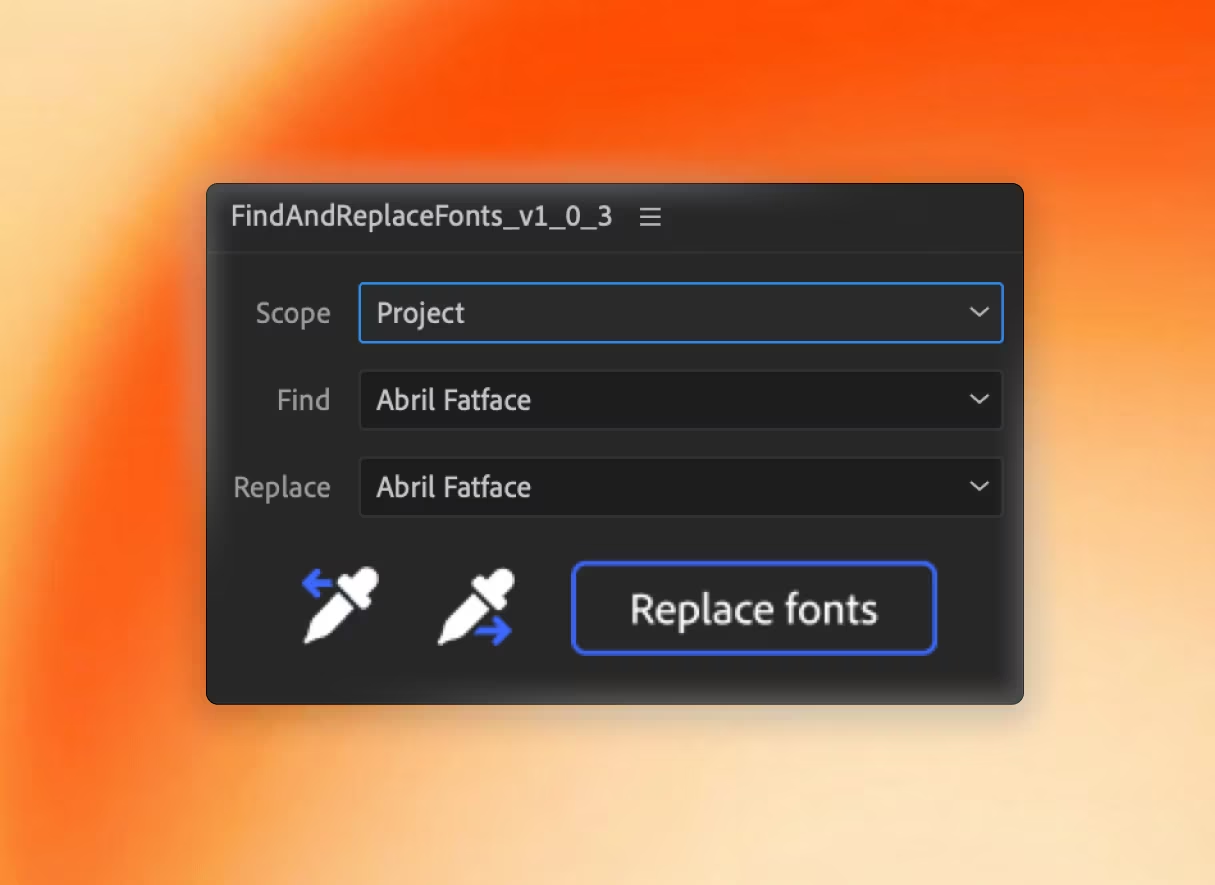
You’ve just been asked to change the font in a project. Simple enough — until you open the project and realize the font is used across 40 compositions, buried inside nested precomps, spread across hundreds of text layers.
Doing it manually means hunting through every comp, selecting each text layer, and changing the font one at a time. On a large project that’s an afternoon of work.
There’s a better way.
The built-in option (and why it falls short)
After Effects has a native Find and Replace for text content, but there’s no built-in tool to replace fonts across a project. The closest you can get natively is:
- Edit → Find and Replace — only finds text content, not font assignments.
- Manually selecting all text layers in a comp and changing the font in the Character panel — works, but you have to do every comp separately and it skips precomps.
- Scripting with ExtendScript — powerful but requires coding knowledge.
For a small project this is manageable. For anything real-world, it’s painful.
The fast way: Find and Replace Fonts
Find and Replace Fonts is an After Effects extension that solves this specifically. It scans your entire project — including nested precomps — and gives you a list of every font in use. You pick the font you want to replace and the font you want to use, click Replace, and it’s done across every comp at once.
Here’s the full workflow:
Step 1: Install and open the extension
Install Find and Replace Fonts via the ZXP file using Creative Cloud or Anastasiy’s Extension Manager. Then in After Effects: Window → Extensions → Find and Replace Fonts.
Step 2: Scan your project
Click Scan project. The extension indexes every text layer in every composition — including deeply nested precomps — and displays a list of all fonts it finds, with a usage count next to each one.
This alone is useful. You get a complete picture of font usage before you change anything.
Step 3: Choose your replacement
Select the font you want to replace from the list. Then choose the replacement font from the dropdown (it shows all fonts installed on your system). You can also specify:
- Style mapping — match Bold to Bold, Italic to Italic, or flatten everything to Regular.
- Scope — replace across the whole project or only in selected comps.
Step 4: Preview before you commit
Toggle Preview mode to see which layers will be affected before making any changes. This is especially helpful on client projects where unexpected layers might use the same font.
Step 5: Replace
Click Replace. The extension updates every matched layer simultaneously. On a typical project with hundreds of text layers, this takes a second or two.
When this comes up
A few scenarios where this saves significant time:
Rebrand projects. A client updates their brand guidelines and switches from Helvetica Neue to a custom typeface. With Find and Replace Fonts, a project-wide swap takes minutes instead of a day.
Licensed font issues. A font in a project isn’t licensed for distribution. You need to swap it for a system alternative before sending files to a client. Scan, identify, replace — done.
After Effects missing fonts. You open a project on a new machine and see the yellow “Font missing” warning. Scan the project, see exactly which fonts are missing, and batch-replace them with available alternatives.
Template adaptation. You’re adapting a purchased template to a new brand. The template uses three or four fonts throughout dozens of nested precomps. One scan gives you the full list; a few replacements and it’s your font system.
What won’t it handle
Find and Replace Fonts works on text layers. It won’t modify fonts embedded inside shape layers, fonts used in Illustrator files linked to the project, or font names stored in expressions. Those are edge cases, but worth knowing.
More After Effects workflow tools
If you’re working with templates at scale or managing multi-language outputs, check out AE Sheets — it handles spreadsheet-driven text updates and localization across your whole project, and pairs well with font management work.
Questions? Join the Sidequest Plugins Discord — happy to help.
Mentioned in this article
Take your workflow further
The tools covered in this guide are available on Sidequest Plugins.